Outfield Audio Settings Guide
The enemy hears you — your mix should help you hear it back.
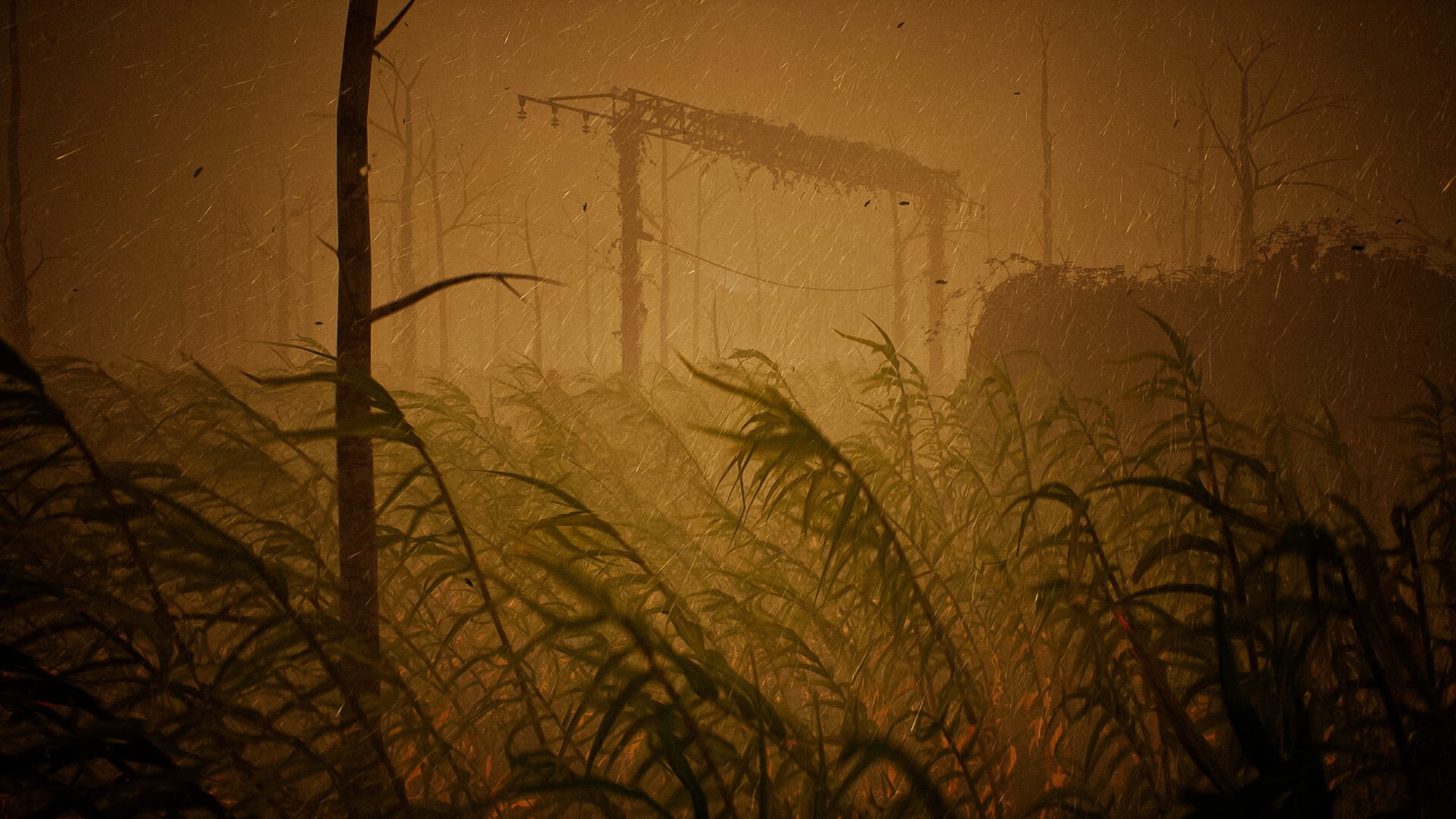
Outfield is built on sound. The predator cannot see you; it hears footsteps, gunshots, reloads, and environmental noise. Rain masks some actions while night shrinks vision, pushing more decisions into audio. Steam lists custom volume controls and stereo sound for the Windows release on July 29, 2026 by Mathis Debaussart. This guide explains how to tune sliders and hardware so audio helps rather than hides — the companion to Keybinds on the Controls hub.
Read Stealth and Sound for tactical use of noise; this page focuses on settings, headphones, and OS-level choices.
Recommended slider philosophy
Think in layers:
- Effects / SFX — hunter cues, footsteps, rain, gunshots, interact sounds.
- Music / ambience — mood without drowning threats.
- Master — overall cap after the other two are balanced.
- UI sounds — menus and pickup chimes; keep audible but not startling.
Until launch exposes exact menu names, apply this rule: never sacrifice effects for music. If you must choose, lower music first, then ambience, then master — not footstep clarity.
Headphones vs speakers
Stereo headphones are the practical default for Outfield:
- Directional hunter audio is easier to parse in headphones.
- Rain masking is subtle; speakers blur the difference between weather and threats.
- Night segments from Day, Night and Weather already reduce visual info — do not also reduce spatial audio.
Open-back headphones help long Survive Longer sessions but leak ambient room noise. Closed-back isolates cues better in noisy rooms.
Rain, night, and mix adjustments
Weather changes what you can get away with, not what you should hear:
- During rain, keep effects high enough to notice when masking ends.
- During night, resist turning brightness up by cranking music — visibility problems are solved in video settings, not audio mute.
- When exploring secrets from Secrets and Exploration, listen for environmental shifts that hint at hidden spaces.
If rain overpowers hunter pressure, lower ambience slightly, not effects.
Windows and Steam audio checklist
Before your first run from Getting Started:
- Set Windows output device to your primary headphones.
- Disable audio enhancements that compress dynamic range.
- Launch Outfield from Steam with the Steam overlay enabled for volume if needed.
- In-game, open Settings via pause — same path as Keybinds adjustments.
- Test walk, sprint, one shot, reload on an empty field segment and listen to relative loudness.
Steam supports English and French interfaces; slider labels follow your language choice.
Suggested starting mix (pre-launch template)
Use as a baseline until launch menus confirm names:
| Channel | Suggested range | Why |
|---|---|---|
| Effects / SFX | 85–100% | Hunter and footstep information |
| Music | 40–65% | Atmosphere without masking threats |
| Ambience / weather | 60–80% | Rain masking cues live here |
| Master | 70–90% | Set after other sliders |
| UI | 50–70% | Menus should not clip louder than gunshots |
Fine-tune after one full run with scarecrow breaks from Scarecrow and XP. If reload sounds disappear, raise effects before touching master.
Audio mistakes that end runs
- Muting effects to reduce jump scares — you also mute the hunter.
- Crushing master because grass ambience is loud — lower ambience instead.
- Discord or browser audio competing on the same device — use separate volume or ducking.
- Wireless latency — Bluetooth can desync critical cues; wired USB is safer for serious runs.
Navigation errors from Map Navigation sometimes start as misheard direction, not bad routes.
Streaming and recording considerations
If you stream Outfield, viewers want music but you need clarity. Route game effects to headphones fully while OBS captures a separate music bus, or use a compressor only on stream output — never on your live monitoring path.
Post-launch, Tools may publish OBS filters; this wiki stays focused on in-game sliders.
Accessibility notes
Custom volume controls on Steam suggest independent sliders — use them if you have hearing sensitivity to specific frequencies. Visual accessibility does not replace audio in Outfield’s design, but clearer UI text in English or French helps read upgrade choices tied to Upgrades and Builds.
There is no multiplayer voice chat at launch; single-player mix is simpler than squad games.
Patch and platform updates
Audio mix changes appear in Updates when patches alter footstep loudness, rain masking strength, or hunter cue volume. Re-test your template after any sound patch.
Official store requirements and support links sit on Official Links. Codes do not adjust audio.
Quick daily checklist
- Effects louder than music.
- Headphones selected in Windows.
- One test sprint and shot before farming XP.
- Re-check after weather transitions mid-run.
- Return to Controls if you change hardware.
Good audio settings will not carry a run alone — but bad settings guarantee you never hear the mistake coming.
Frequently Asked Questions
Quick answers to the most common questions.
What is the most important Outfield audio slider?
Effects or SFX that carry footsteps, gunshots, reloads, and hunter cues. Keep them higher than music and ambience.
Do I need headphones to play Outfield?
You can use speakers, but stereo headphones make directional hunter audio and rain masking much easier to read.
Should I mute music for competitive runs?
Lower music significantly rather than muting effects. Many players run music around half volume or lower during record attempts.
Does rain change audio settings?
Rain changes gameplay masking, not your sliders. Keep effects high so you notice when rain stops and masking drops.
Where are audio settings in the menu?
Open Settings from the pause menu after launch. Exact labels will be confirmed in the shipping build and updated here.
Will audio balance change in patches?
Likely yes for a new horror roguelite. Follow Updates and re-test your mix when footstep or hunter volumes are mentioned.