Outfield Keybinds Reference
Default PC bindings for movement, combat, and interaction in the tall grass.
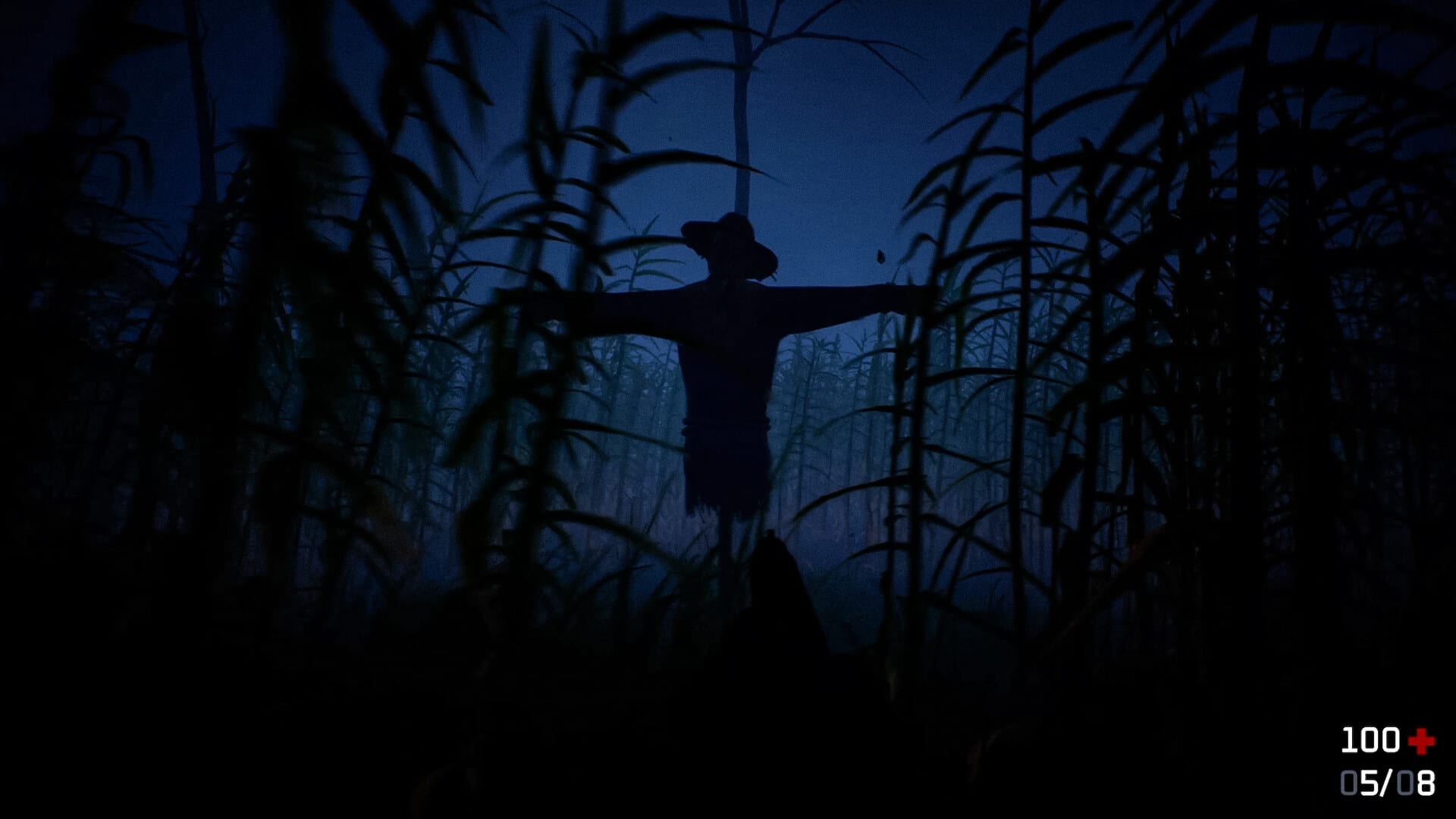
Outfield plays from a first-person perspective with one gun, sound-based enemy pressure, and scarecrow objectives scattered across procedural fields. Comfortable keybinds reduce fumbled inputs — the kind that accidentally sprint into noisy grass or reload in the open. This page documents expected default PC bindings ahead of the July 29, 2026 Steam launch by Mathis Debaussart, and explains how each input ties to survival tactics from the Guides hub.
Exact defaults may shift in the shipping build. When Updates confirms changes, we revise the tables here. Until then, treat this as a standard FPS layout aligned with Steam tags and pre-release materials.
Default movement and camera
| Action | Default key | Notes |
|---|---|---|
| Move forward | W | Hold for steady walking when noise matters |
| Move backward | S | Backpedal sparingly — slow and loud in many horror fields |
| Strafe left | A | Preferred for micro-adjusts in fence gaps |
| Strafe right | D | Keep strafe on strong fingers for quiet alignment |
| Sprint | Left Shift | High noise cost; see Stealth and Sound |
| Crouch | Left Ctrl | Shortens profile; may reduce footstep profile when available |
| Jump | Space | Use rarely — vertical movement can snag on grass geometry |
| Look / aim | Mouse | Sensitivity personal; lower helps night aim from Day, Night and Weather |
Navigation habits from Map Navigation assume you can strafe without sprinting. If Shift sits under your pinky, consider toggle sprint only after you understand baseline footstep noise.
Combat and weapon
Outfield gives you one gun. Every shot matters for scarecrow breaks and for attracting the hunter.
| Action | Default key | Notes |
|---|---|---|
| Fire | Left mouse button | Loud; plan post-shot reposition |
| Aim down sights | Right mouse button | If ADS exists in shipping build, use for distant scarecrows |
| Reload | R | Creates a noise window — reload behind cover or during rain |
| Switch weapon / melee | Q or 1–3 | Likely minimal if only one firearm exists; confirm at launch |
| Throw / off-hand | G or F | Confirm when demo or release build exposes utilities |
Pair combat binds with XP timing in Scarecrow and XP — breaking three scarecrows because reload was off cooldown is a binding and routing problem.
Interaction and UI
| Action | Default key | Notes |
|---|---|---|
| Interact / use | E or F | Doors, props, loot; noisy in secrets — see Secrets and Exploration |
| Inventory / menu | Tab or I | Check loot without standing in open lanes |
| Map / journal | M | If present; many runs rely on landmarks instead |
| Pause | Escape | Access settings and audio sliders |
Loot decisions from Loot and Items often happen on interact keys — ensure interact is reachable without lifting WASD.
System and communication
| Action | Default key | Notes |
|---|---|---|
| Screenshot | F12 | Steam default overlay |
| Push to talk | N/A | Single-player at launch — no multiplayer voice |
Outfield ships English and French menus on Windows. Rebind labels follow the selected interface language.
Recommended remapping priorities
- Sprint — consider toggle vs hold after you learn noise cost.
- Crouch — move to a thumb button if Ctrl feels awkward during strafe fights.
- Interact — avoid keys that conflict with forward movement or sprint.
- Reload — keep on an easy key but build habit of reloading only in safe windows.
- Melee / utility — only if the release build adds off-gun tools.
Do not remap everything day one. Finish Getting Started, die once, then change one bind per run until muscle memory stabilizes.
Sensitivity and mouse settings
Steam lists mouse-driven FPS gameplay. Practical starting points:
- Lower sensitivity for night scarecrow shots when visibility drops.
- Disable mouse acceleration in Windows for consistent flick control.
- Large mousepad helps quiet strafe corrections without keyboard zig-zags that add footsteps.
Post-launch, community Tools may publish sensitivity anchors; until then, prioritize quiet movement over flick hero shots.
Keybinds and long-run survival
Survive Longer runs fail when panic inputs spike noise — sprint spam, accidental reload, interact mis-press in tall grass. Practice dry routes without shooting to test binds under pressure before pushing records.
Upgrade choices from Upgrades and Builds that boost mobility only help if your hands can execute without extra keys. Compare mobility upgrades on Tier List after launch data exists.
Audio companion page
Keybinds handle fingers; audio handles ears. After setting movement and combat, configure Audio Settings so hunter cues stay clear. Return to the Controls hub for setup order.
Verification at launch
On release day:
- Open Settings from the pause menu.
- Screenshot the official bind screen.
- Compare to this page and report differences via Steam discussions linked on Official Links.
We update within the first Updates patch note that mentions controls. Codes do not affect keybinds.
Solid defaults plus deliberate remapping turn the single gun into a tool you fire when you mean to — not when your hand slips.
Frequently Asked Questions
Quick answers to the most common questions.
Are these Outfield keybinds official defaults?
They reflect expected standard FPS layout before final release. We will match the in-game bind screen exactly once the July 29, 2026 launch build is verified.
Should I use toggle or hold sprint?
Hold sprint teaches noise cost early. Toggle can help long sessions once you understand when sprinting is worth the sound.
Can I play Outfield without a mouse?
Mouse look is core to first-person Steam tags. Mouse and keyboard are strongly recommended until official controller support is documented.
Which key fires the only gun?
Left mouse button is the standard fire binding. Treat every shot as a noise event per Stealth and Sound guide.
Where do I change keybinds in game?
Open Settings from the pause menu after launch. Remapping options will be confirmed in the shipping build and updated here.
Do keybinds differ between English and French?
Gameplay keys stay the same; menu labels follow the interface language you select in Steam or in-game.